

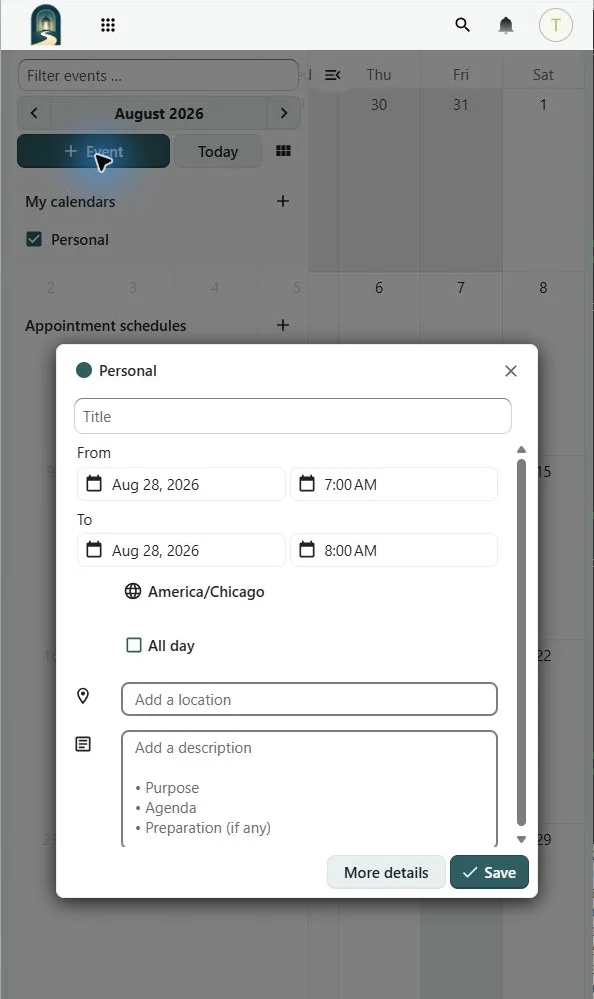
Select + Event or select a date and time in Calendar. Enter the title, date, start and end time, and the destination calendar. Add a location, description, or reminder when needed, then save. LightDrive does not send calendar invitations during this pilot.
Select an existing event to view it. Use Edit to change its details or Delete to remove it. Moving an event by dragging it changes its scheduled time, so review the result before leaving the page.
An all-day event has a date but no clock time. For a timed event, confirm the displayed time zone, especially when participants are in different regions.
Events on a shared calendar
A view-only recipient can read events but cannot create, change, or delete them. A recipient who accepted Can edit events access can create, change, and delete events for everyone with access, but cannot rename or delete the calendar, reshare it, or manage permissions. Put only information intended for every recipient on a sharing calendar, including its notes, locations, attendees, reminders, and links.