

Select Calendar from the Vault app menu. The main view displays your events by month, week, day, or list. Use Today to return to the current date.
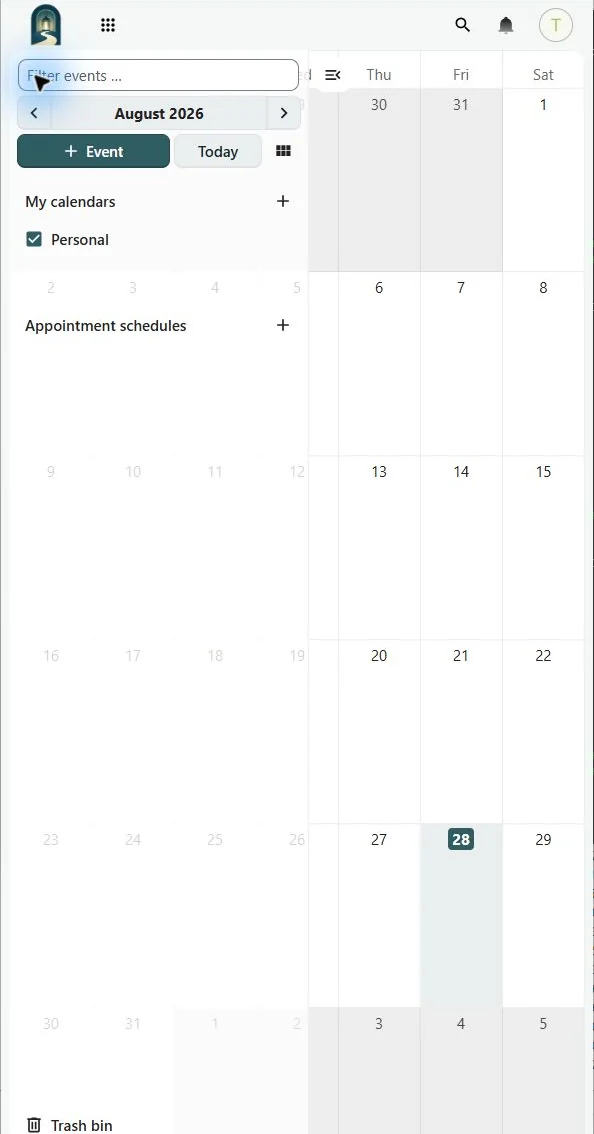
The sidebar lists your calendars. A checked calendar is visible; clearing its check hides its events without deleting them. Select + Event or an empty time in the calendar to create an event.
Calendar data is stored with your LightDrive account and can synchronize to compatible devices through CalDAV. A change made in the browser is sent to connected clients, and a change from a client appears in the web calendar after synchronization.
Sharing is deliberate
Your personal calendars are not automatically shared with other LightDrive accounts. When calendar sharing is enabled, Sharing & invitations appears inside Calendar. See Using Multiple Calendars for the view-only and editable sharing workflows.