

Select Email from the Vault app menu. LightDrive opens the webmail interface for your @lightdrive.one mailbox.
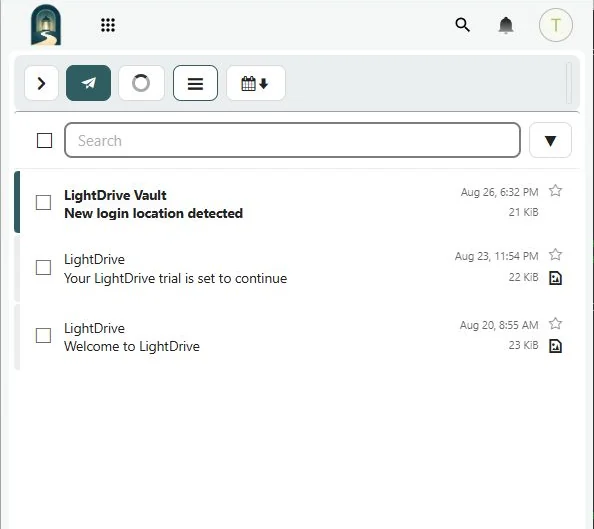
The left sidebar contains Inbox, Sent, Drafts, Spam, Trash, Archive, and any folders you create. Select a folder to view its messages, then select a message to read it. Use search above the message list to find mail.
Select New message to compose mail. The webmail address picker can use contacts stored in your LightDrive CardDAV address book, but it reads that address book without editing it.
Browser webmail works without additional setup. For a phone or desktop mail program, use the IMAP and SMTP settings in Chapter 14.
Email tools in the sidebar
Above Settings and Help, use Filters & blocked senders, Email forwarding, Automatic replies, and Outgoing. Filters, forwarding, and replies apply to new incoming mail even when Email is closed. Configure these tools from their sidebar links.
Send includes a 30-second Undo window by default. Change the delay in Settings → General → Sending or at the top of Outgoing; use Send now to skip the wait for one message. Use Schedule send beside Send to choose a later time.
Check which mailbox is open
The current mailbox address appears beside Email in the LightDrive header. It updates when you switch mail accounts and is hidden while an account switch is in progress. A long address may be shortened visually on a small screen; the complete address remains in its tooltip and accessible label. This identifies the mailbox you are viewing. Check the compose window’s From field for the address used to send a particular message.
Use advanced search
Open the native Advanced Search controls from the search field. You can combine sender, recipient, subject, message text, date, tag and message-status criteria. Replied to offers Any, Yes and No. The checkboxes are labeled Unread, Starred and Has attachments. These labels clarify the existing search; they do not change its behavior or folder scope.