

Open the destination folder in Files, select New, and choose Upload files. Select one or more files and wait for the upload indicator to finish.
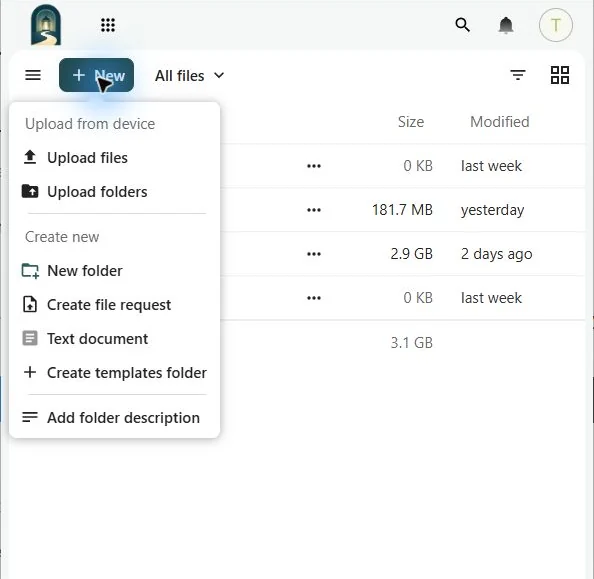
You can also drag files from your computer into the open Files view. Keep the browser tab open until every transfer completes. If an item with the same name already exists, Files asks how to resolve the conflict instead of silently replacing it.
If an upload fails
Confirm that the account has enough Vault storage, the file name is valid, and the network connection is stable. An unverified account is limited to 1 MB, so complete recovery-email verification before uploading normal files. Large uploads are more reliable through the Nextcloud desktop client because it can resume interrupted transfers.